Device Certificates
Device certificates allow client devices to authenticate against Losant's MQTT broker through certificate-based authentication. Certificates must be signed by a certificate authority that is also stored in the Losant application.
Viewing Certificates
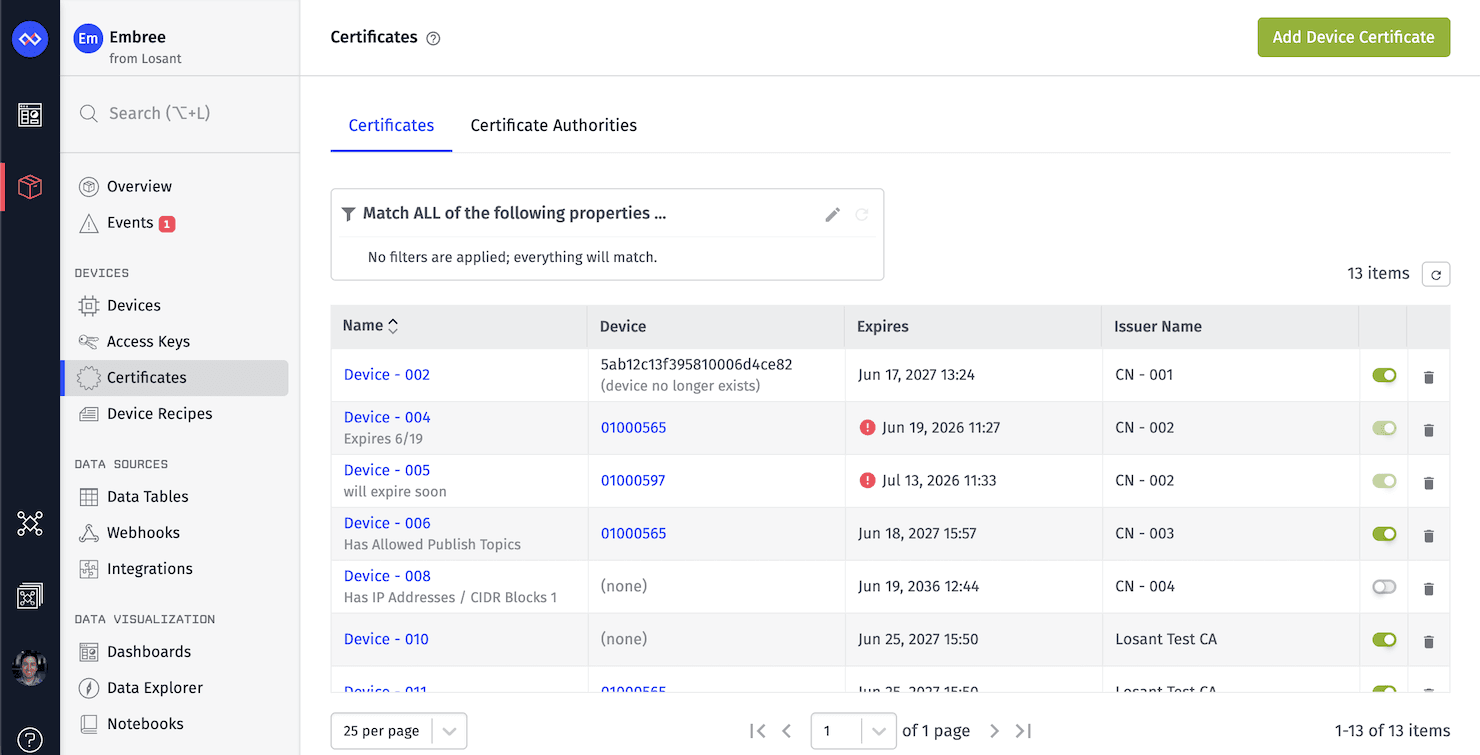
You can view your device certificates for an application by choosing "Certificates" in the application subnavigation. By default, the "Certificates" tab is selected. The list includes each certificate's name (or the "Common Name" if a name is not explicitly set), associated device, expiration date, issuer name, and status (active/inactive). You can click on any certificate to view more details about it.
Certificates support advanced queries for filtering the list by several properties, including issuer name, associated device, topic restrictions, and more. See the Device Certificates advanced query schema for more information.
Creating a Certificate
Device certificates can be added to your application by using the "Add Device Certificate" button on the Device Certificates list. The form takes several properties broken up across multiple sections.
Note: Certificates can also be created in a workflow using the Device Certificate: Register Node.
Overview
First, provide the following optional fields:
- Name: A human-readable name for the certificate. This is for your reference and has no effect on the certificate's functionality. (Note: Unlike most other Losant resources, this field is optional; if not set, the "Common Name" from the certificate itself will be used for display purposes.)
- Description: A longer description for the certificate.
- Status: Whether connections to the broker using this certificate should be accepted. Default is "Active"; set to "Inactive" to reject all authentication requests.
Device Certificate
Next, provide a valid certificate. This field is required. The certificate must meet the following requirements:
- Format: PEM-encoded X.509 certificate (a single
-----BEGIN CERTIFICATE-----block; bundles are not accepted here). - Created from a CSR: The certificate must have been created from a certificate signing request (CSR) generated by the device, and must be valid against the device's private key.
- Signed by a registered CA: The certificate must have been signed by a certificate authority saved in the application.
ExtendedKeyUsage: clientAuth: The certificate must include theclientAuth(1.3.6.1.5.5.7.3.2) extended key usage extension.- Not a CA certificate: The certificate must not have
BasicConstraints.cA = true; CA certificates cannot be used as device certificates. - Not expired: The certificate's
notAfterdate must be in the future at the time it is saved.
Though you may change the certificate value after creation, Losant recommends creating an additional certificate valid for the same device when rotating expiring certificates to limit downtime, and then deleting / deactivating the original certificate once the new one is in use.
Device Association
Optionally, choose a device to associate with the certificate. Doing so will allow MQTT clients using that device ID to authenticate against the broker using this certificate; without associating a device, the certificate cannot be used to authenticate against the broker.
Certificates are only valid for a single device. That device may be assigned at the time of certificate creation, or it may be assigned after creation one time only - meaning that once a certificate is assigned to a device, it cannot be reassigned to a different device.
Connection Restrictions
Optionally, you may restrict incoming connections authenticated using the certificate to a specific set of IP addresses or CIDR blocks. If you choose to add connection restrictions, any connection attempt using this certificate from an IP address that does not match one of the provided rules will be rejected.
Choose one of the following Allowed IP Addresses options:
- Allow connections from all IP addresses: (default) If selected, connections using this certificate will be allowed from any IP address.
- Allow connections from ONLY these IP addresses ...: If selected, provide one or more IP addresses and/or CIDR blocks that are allowed to connect using this certificate. Connections using this certificate will be rejected from any IP address that does not match one of the provided rules.
- Allow connections from all EXCEPT these IP addresses ...: If selected, provide one or more IP addresses and/or CIDR blocks that are not allowed to connect using this certificate. Connections using this certificate will be allowed from any IP address that does not match one of the provided rules.
Losant respects the X-Forwarded-For HTTP header when evaluating connection restrictions. If your device connects through a proxy or gateway that sets this header, make sure that the header is set correctly and securely, as it can be easily spoofed.
Additional MQTT Topics Access
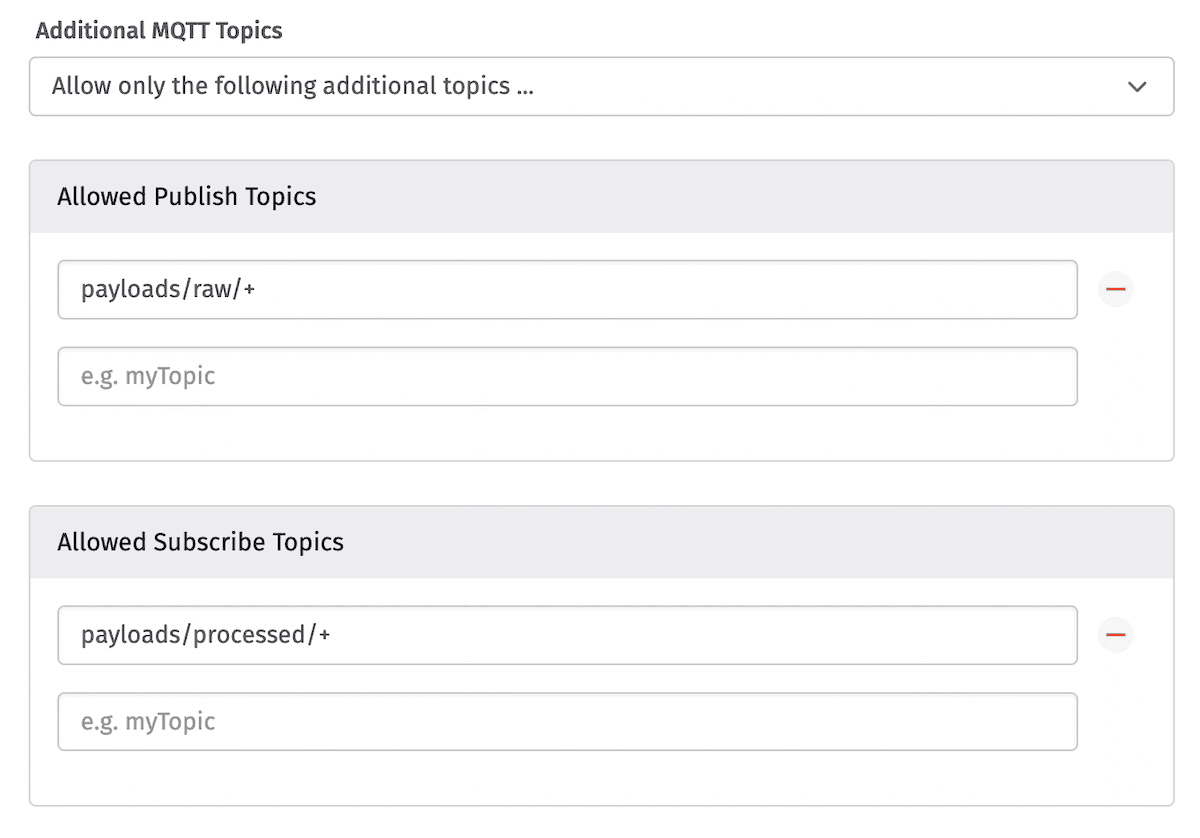
By default, certificates only allow access to the device-specific MQTT topics (e.g. state and commands) for the associated device. Optionally, you can specify multiple non-device MQTT topics that a client authenticating using the certificate should have access to. Select one of the following Additional MQTT Topics options:
- Allow all additional topics: Allow access to device-specific topics and all custom topics.
- Do not allow any additional topics: (default) Allow access to only device-specific topics.
- Allow only the following additional topics ...: Allow access to device-specific topics and only the listed custom topics.
- Allow all except the following topics ...: Allow access to device-specific topics and all except the listed custom topics.
If you choose "Allow only the following additional topics ..." or "Allow all except the following topics ...", you will also need to provide a list of allowed/disallowed Publish Topics and/or a list of allowed/disallowed Subscribe Topics. Each value must be a valid MQTT topic, and furthermore, they cannot be MQTT system topics (prefixed with $SYS), or Losant-specific topics (e.g. losant/DEVICE_ID/state).
Deleting / Deactivating a Certificate
To temporarily deactivate a certificate:
- Click the switch alongside the certificate in the list view, OR
- From the certificate's detail page, toggle the switch from "Active" to "Inactive" and save the certificate.
If a certificate is no longer needed, or you believe it has been compromised, you may permanently delete it by:
- Clicking the
Deleteicon in the certificates list, OR - Clicking the
Delete Certificatebutton on the certificate's detail page
Deleting or deactivating a certificate takes effect immediately. If the certificate's device is currently connected to the MQTT broker, that device will be immediately disconnected.
Certificate Authorities
In order for the MQTT broker to accept an authentication request using a certificate, that certificate must be signed by a certificate authority configured within the application. This is required to verify the trust chain of the certificate included in the authentication request.
Viewing Certificate Authorities
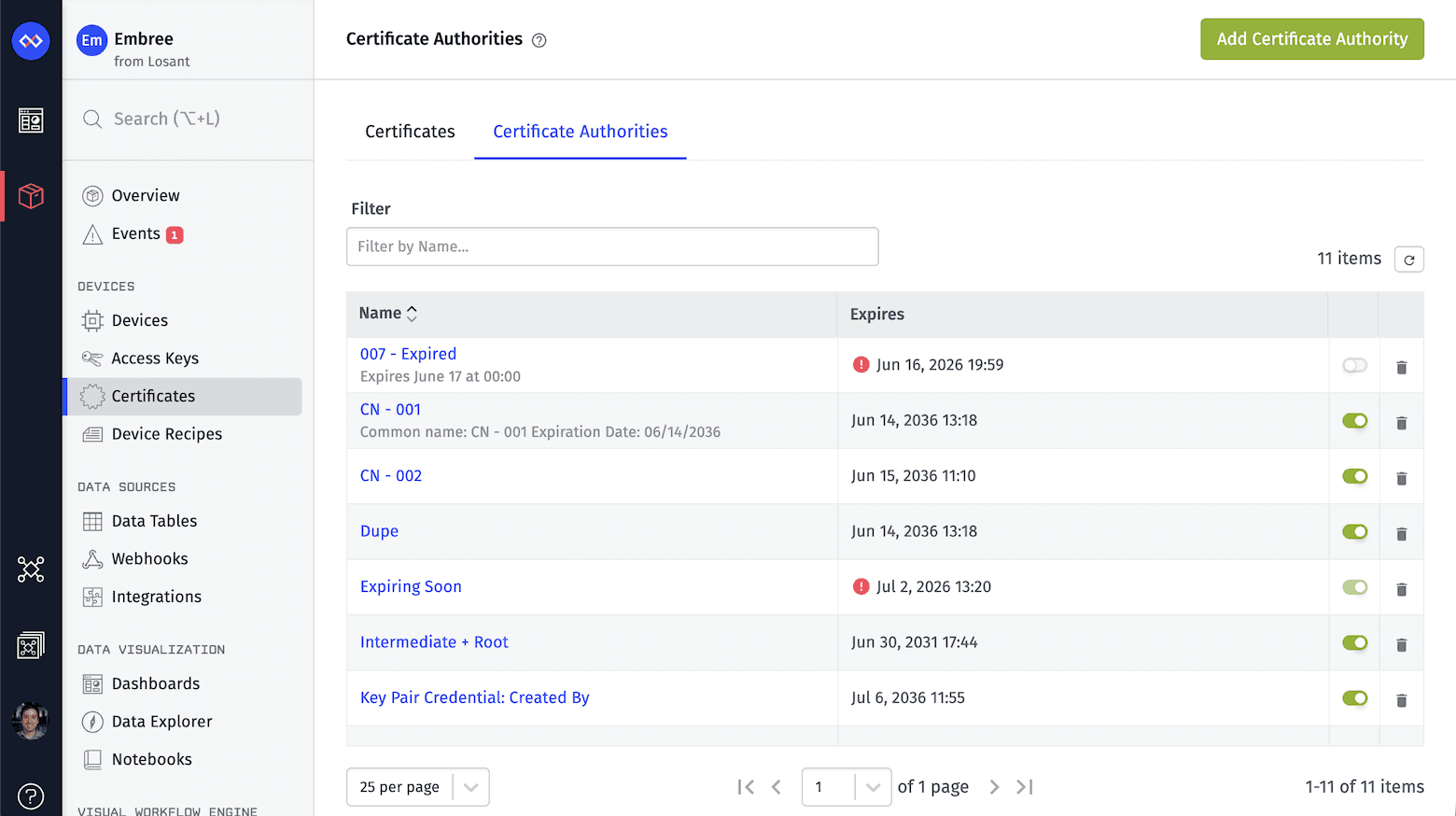
A list of your application's certificate authorities is available by choosing "Certificates" in the application subnavigation, and then selecting the "Certificate Authorities" tab on the list page.
Creating Certificate Authorities
Certificate authorities may be created in one of two ways:
- Clicking "Add Certificate Authority" at the top of the Certificate Authorities list and filling out the form with a Name, Description, Active status, and a CA Bundle, OR
- Saving a Certificate / Key Pair service credential as a new certificate authority. Note that, after doing so, changes to the service credential do not propagate to the certificate authority; updates to the service credential would require saving as a new certificate authority in your application, and the previously created certificate authority would continue to exist until disabled or deleted.
The provided certificate bundle must meet the following requirements:
- Format: One or more PEM-encoded X.509 certificates, each in a
-----BEGIN CERTIFICATE-----block. BasicConstraints.cA = true: Every certificate in the bundle must be a CA certificate.KeyUsage.keyCertSign: Every certificate must have the key certificate signing bit set.- Not expired: No certificate in the bundle may be expired.
- Single-certificate bundle: The certificate must be self-signed (i.e., its issuer and subject are the same, and it signs itself).
- Multi-certificate bundle: The certificates must form a valid chain, where the first certificate chains up to a self-signed root using the remaining certificates as intermediates.
Viewing Signed Certificates
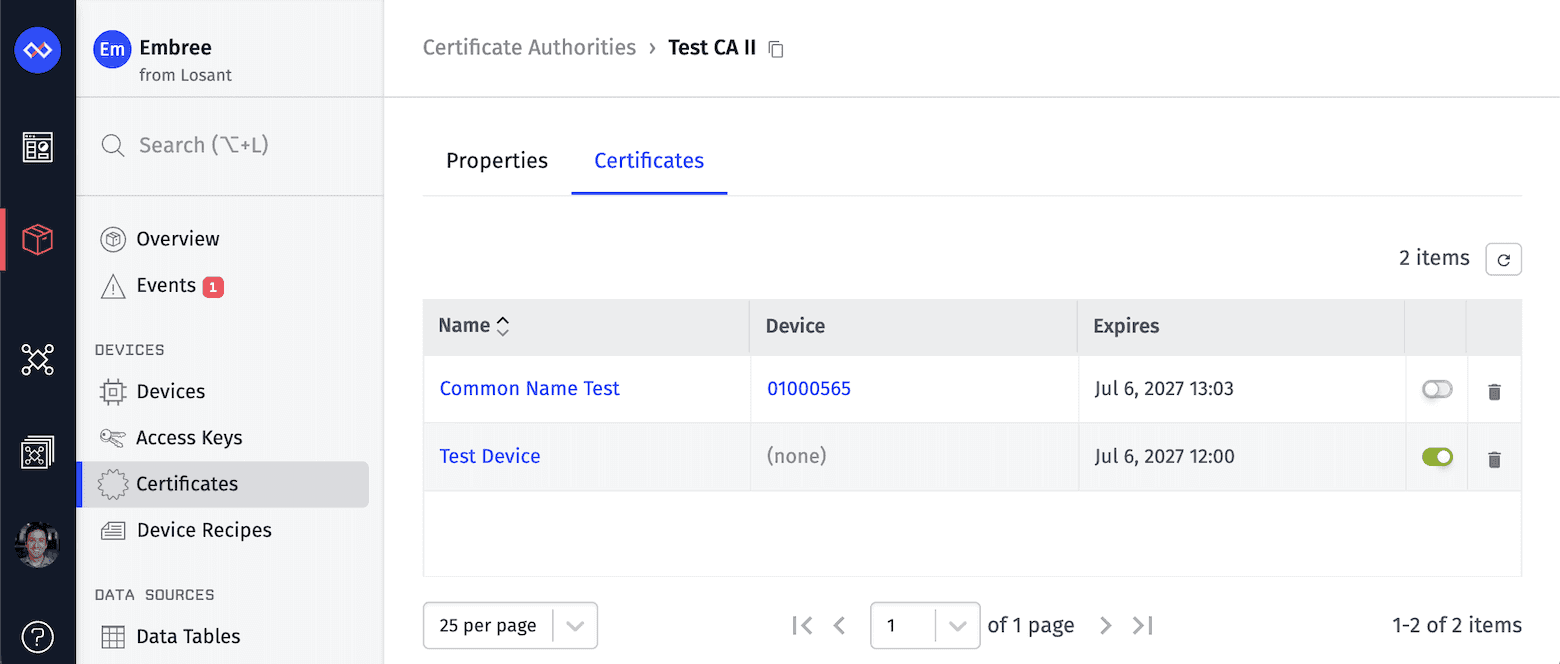
From a certificate authority's detail page, you may view any device certificates that were signed using that authority. This is helpful for quickly identifying affected certificates when, for example, a certificate authority is approaching its expiration date.
Deleting / Deactivating Certificate Authorities
To temporarily deactivate a certificate authority:
- Click the switch alongside the certificate authority in the list view, OR
- From the certificate authority's detail page, toggle the switch from "Active" to "Inactive" and save the certificate authority.
If a certificate authority is no longer needed, you may permanently delete it by:
- Clicking the
Deleteicon in the certificate authority list, OR - Clicking the
Delete Certificate Authoritybutton on the certificate authority's detail page
Deleting or deactivating a certificate authority takes effect immediately. Any device that is currently connected to the broker using a certificate that was signed by the authority will be immediately disconnected.
Was this page helpful?
Still looking for help? You can also search the Losant Forums or submit your question there.