User OAuth Tokens
User OAuth tokens grant third-party applications access to resources connected to your user profile — including your Sandbox, organizations, and any applications under those — at a scope level the application requests and that you approve.
Unlike User API Tokens, which you create yourself for your own programmatic use, OAuth tokens are created on your behalf when a third-party application (for example, a Model Context Protocol client) initiates an OAuth 2.0 authorization flow against your Losant account. You then review the access being requested, decide which permissions to grant, and authorize the connection.
Viewing OAuth Tokens
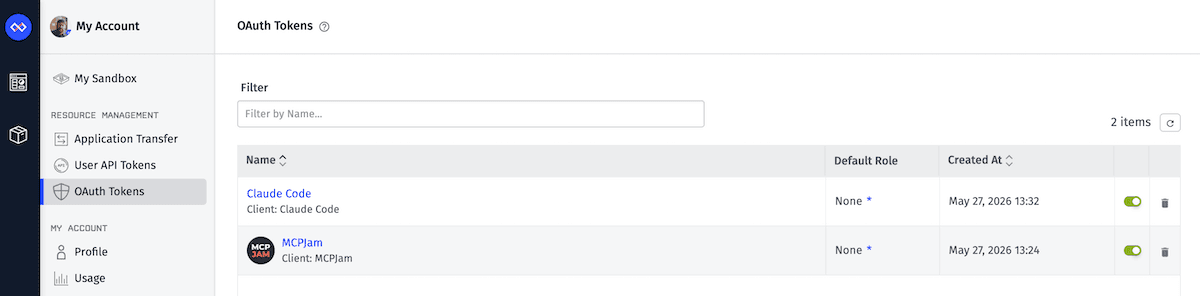
You can view the OAuth tokens for your user by choosing OAuth Tokens in the navigation on the My Account page. You can go to this page by clicking your avatar on the bottom left of the page and selecting "My Account".
The list of OAuth tokens includes the token's name, the OAuth client that requested it, the default maximum role the token may exercise within your organizations, the date the token was created, and the token's status. Tokens that are awaiting completion of the authorization flow are marked with a Pending label.
Authorizing a New OAuth Token
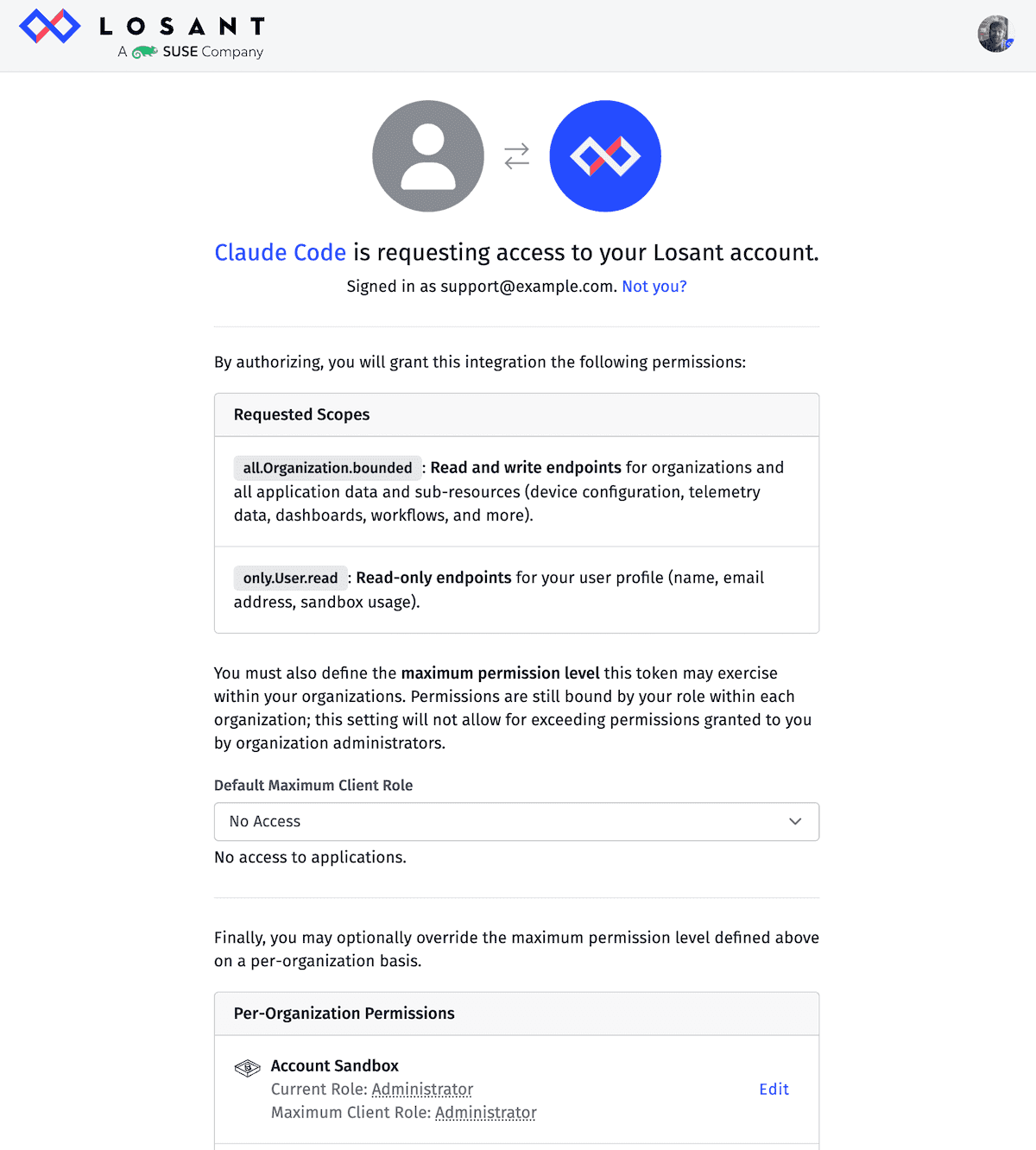
OAuth tokens are not added from the OAuth Tokens page directly. Instead, the third-party application sends you to a Losant consent screen when it needs access to your account. From that screen you will see:
- The OAuth client's logo and name (linked to its homepage when provided), and a link to its terms of service and privacy policy if the client has registered them.
- The list of Requested Scopes, each shown with a plain-English description of what API endpoints the scope grants.
- A Default Maximum Client Role selector that caps what role the token may assume in every organization it can reach. See Token Permission Cap on the User API Tokens page for what each role can do.
- A Per-Organization Permissions section where you can optionally override the default role for individual organizations and your Sandbox. See Per-Organization Overrides.
A token cannot exceed permissions granted to you by organization administrators. If your role in an organization is later reduced, the token's effective permissions in that organization are reduced along with it.
Once you click Authorize Application, Losant creates the OAuth token under your account and hands an access token back to the third-party application. You can change the default role, per-organization permissions, and per-application permissions later from the token's detail page in My Account.
Requested Scopes
OAuth clients may request a subset of the user-context scopes supported by Losant. The authoritative list lives in the scopes_supported field of the OAuth authorization server metadata document at /.well-known/oauth-authorization-server. The supported scopes are:
all.Application.read— Read-only access to all application data and sub-resources (devices, telemetry data, dashboards, workflows, and more).all.Application.bounded— Read and write access to all application data and sub-resources.only.Organization.read— Read-only access to organizations and a list of their applications, but no access to application sub-resources.only.Organization.bounded— Read and write access to organizations and read access to listing their applications, but no access to application sub-resources.all.Organization.read— Read-only access to organizations and all of their application data and sub-resources.all.Organization.bounded— Read and write access to organizations and all of their application data and sub-resources.only.User.read— Read-only access to your user profile (name, email address, sandbox usage).
The .bounded scopes grant read and write access to the resources they cover, but exclude a handful of sensitive actions — managing API tokens, managing organization members and invitations, transferring resources, and changing your account credentials. See Bounded read/write endpoints on the User API Tokens page for the full definition.
A token's scope cannot be changed after authorization. If the third-party application later needs additional scopes, it will start a new authorization flow and you will be asked to consent again.
Managing an OAuth Token
Selecting a token from the list opens its detail page. The token's status can be toggled between Active and Inactive at any time; if inactive, any requests the third-party application makes with the token will fail. From the detail page you can also:
- View the OAuth Client Info — the client's logo, name (and link), the token's ID, when it was created, when it expires, and the scopes the token was granted.
- Change the token's name and description for your own reference.
- Change the token's Token Permission Cap, Per-Organization Overrides, and Per-Application Overrides. These use the same controls as User API Tokens.
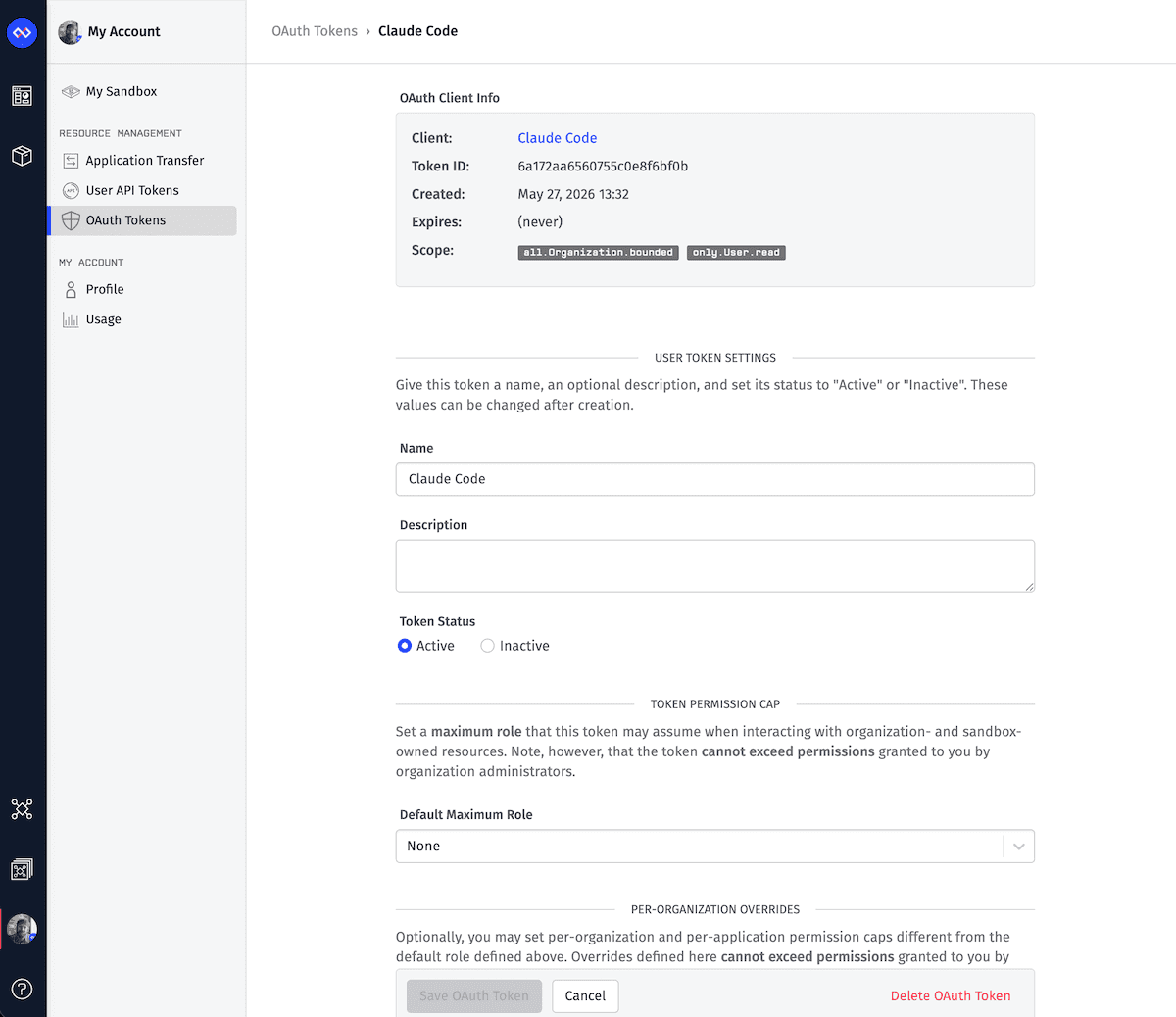
The token's scope, expiration date, and underlying OAuth client cannot be changed from this page. If you need different scopes, the third-party application will need to start a new authorization flow.
Pending Tokens
A token marked Pending was created when you started an OAuth flow but the third-party application has not yet completed the token exchange. Pending tokens that are not completed are automatically removed after 24 hours.
Token Expiration Date
OAuth tokens authorized through the consent flow do not expire by default. If an expiration date has been set for a token, it is shown on the token's detail page.
After a token expires, the third-party application will need to start a new authorization flow to continue accessing your account, and the expired token's settings page becomes read-only.
Deleting / Deactivating an OAuth Token
To temporarily deactivate an OAuth token without revoking it permanently:
- Toggle the switch in the list view, OR
- From the token's detail page, select the "Inactive" radio button under the "Status" label and save the token.
A deactivated token can be re-activated at any time, restoring the third-party application's access. If a token has expired, is no longer needed, or is thought to have been compromised, you may permanently delete it by:
- Clicking on the
Deleteicon in the token list, OR - Clicking the
Delete OAuth Tokenbutton on the token's detail page.
Deleting an OAuth token immediately revokes the third-party application's access. The application can reconnect by starting a new authorization flow.
Was this page helpful?
Still looking for help? You can also search the Losant Forums or submit your question there.