Certificate: Create Node
The Certificate: Create Node signs a Certificate Signing Request with the requester's public key and identity information using the provided CA key and certificate and issues a new certificate.
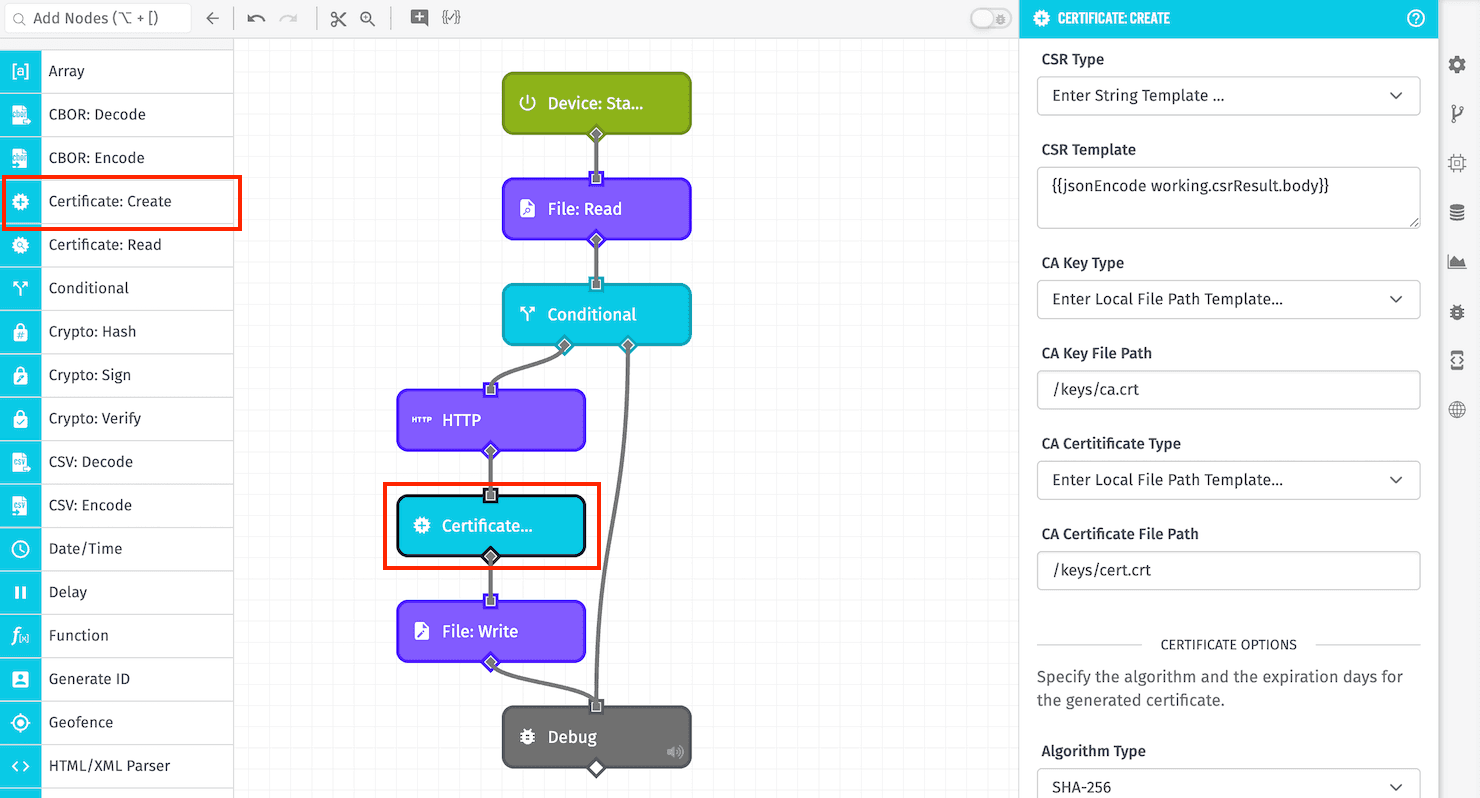
Node Properties
The Certificate: Create Node's configuration is broken up into the following sections ...
Configuration
First, choose how to provide the Certificate Signing Request (CSR) for the new certificate. Options are:
- Enter Local File Path Template: In Edge Workflows only, you may provide a file path to where the CSR is stored in a volume mounted within the agent's container.
- Enter String Template: If selected, provide a string template resolving to the PEM encoded CSR on the payload.
- Enter Payload Path: If selected, provide a payload path pointing to the PEM encoded CSR on the workflow payload.
In addition to a CSR, this field will also accept a PEM-encoded public key or unencrypted private key. When a key is provided in place of a CSR, the certificate's subject must be supplied via the Subject Overrides and / or Subject Alternative Names sections below — at least one of Common Name or one Subject Alternative Name entry is required. Note that only the CSR's Subject Alternative Name extension is preserved on the issued certificate; other extensions on the CSR (such as Key Usage, Extended Key Usage, Basic Constraints, or custom OIDs) are dropped. Use the Certificate Extensions section below to set Key Usage and Extended Key Usage on the issued certificate.
Note: For Edge Workflows, providing a key in place of a CSR is only available in GEA version 2.4.0 or higher.
Providing the CA Key and CA Certificate for signing the new certificate varies depending on the type of workflow where the Certificate: Create Node is being used.
Application & Experience Workflows
In Application Workflows and Experience Workflows, you must provide a Credential Name Template that resolves to one of your application's Certificate / Key Pair Service Credentials to sign the new certificate.
Edge Workflows
In Edge Workflows, the CA Key and CA Certificate are each provided by first choosing an input type:
- Enter Local File Path Template: If selected, provide a file path to where the CA Key or CA Certificate is stored in a volume mounted within the agent's container.
- Enter String Template: If selected, provide a string template resolving to the value.
- Enter Payload Path: If selected, provide a payload path pointing to the value on the workflow payload.
The CA Key must be a PEM-encoded, unencrypted private key. Encrypted (password-protected) private keys are not supported. Accepted formats are:
- PKCS#8 (
-----BEGIN PRIVATE KEY-----) - PKCS#1 RSA (
-----BEGIN RSA PRIVATE KEY-----) - SEC1 EC (
-----BEGIN EC PRIVATE KEY-----)
The CA Certificate must be a PEM-encoded X.509 certificate (-----BEGIN CERTIFICATE-----) whose public key matches the provided CA Key.
Subject Overrides
Optionally, you may override fields from the CSR's subject. Each override replaces only the matching CSR field; any non-overridden fields fall through from the CSR to the issued certificate. Leave a field blank to inherit it from the CSR unchanged. Each field accepts a string template:
- Common Name Template: Overrides the Common Name (
CN). - Country Template: Overrides the Country (
C). Must resolve to a 2-letter ISO 3166 country code (e.g.US). - State / Province Template: Overrides the State or Province (
ST). - Locality Template: Overrides the Locality (
L). - Organization Template: Overrides the Organization (
O). - Organizational Unit Template: Overrides the Organizational Unit (
OU). - Email Address Template: Overrides the email address (
emailAddress). Must resolve to a valid email address.
Note: For Edge Workflows, this section is only available in GEA version 2.4.0 or higher.
Subject Alternative Names
Optionally, you may override the Subject Alternative Names (SANs) from the CSR. If one or more entries are provided here, they fully replace the CSR's SAN list; any SANs on the CSR are dropped. Leave this section empty to inherit the CSR's SANs unchanged.
To add a Subject Alternative Name, choose its Type and provide a Value Template resolving to the value:
- DNS: A DNS host name (e.g.
device-1.example.com). Wildcard and subdomain entries are accepted. - URI: A Uniform Resource Identifier (e.g.
spiffe://example.com/device/1). Any RFC 3986–conformant scheme is accepted. - IP: An IPv4 or IPv6 address (e.g.
192.168.1.42). - Email: An email address (e.g.
device@example.com).
Note: For Edge Workflows, this section is only available in GEA version 2.4.0 or higher.
Certificate Options
Next, provide the following options for the new certificate:
- Algorithm Type: Choose the algorithm that is used to sign the certificate. Available options are
SHA-1,SHA-256,SHA-384, andSHA-512. Default isSHA-256. - Certificate Expires In (Days): Define the length of time the certificate is valid for, starting from the Not Before value below (or, if Not Before is not provided, from the moment of generation). Default is
365days. - Not Before Template: Optionally, provide an ISO 8601 date (e.g.
2026-01-01T00:00:00Z) or Epoch timestamp (in milliseconds) for the certificate'snotBeforevalue. Defaults to the current time when the node executes. Certificate Expires In (Days) counts forward from this value. - Serial Number Template: Optionally, provide a bare hexadecimal value (no
0xprefix) of up to 20 octets to use as the certificate's serial number. If left blank, a random 16-byte serial number is generated.
Note: For Edge Workflows, the SHA-512 algorithm, Not Before Template, and Serial Number Template are only available in GEA version 2.4.0 or higher.
Certificate Extensions
Optionally, you may restrict the issued certificate to specific key operations and purposes by setting one or both of the following RFC 5280 extensions. Both lists are independent and are not cross-validated against each other; choose combinations that match your downstream consumer's expectations (for example, most TLS validators expect a TLS Server Authentication Extended Key Usage to be paired with at least Digital Signature in Key Usages).
- Key Usages: Select one or more Key Usage flags to assert on the certificate. Available options are
Digital Signature,Non-Repudiation,Key Encipherment,Data Encipherment,Key Agreement,Key Cert Sign,CRL Sign,Encipher Only, andDecipher Only. Leave empty to omit the Key Usage extension entirely. - Extended Key Usages: Select one or more Extended Key Usage purposes to assert on the certificate. Available options are
TLS Server Authentication,TLS Client Authentication,Code Signing,Email Protection (S/MIME),Time Stamping, andOCSP Signing. Leave empty to omit the Extended Key Usage extension entirely.
Note: For Edge Workflows, this section is only available in GEA version 2.4.0 or higher.
Result Path
Finally, enter a Result Path, which is a payload path for where to place the new certificate on the payload. If successful, the result will be an object with a certificate property, a publicKey property, and an info property with details about the certificate. If the node fails, the value placed at the path will be an error object with a message property giving a reason for the failure.
Node Example
When provided with a valid CSR, CA Key, and CA Certificate, the Certificate: Create Node would place an object resembling the following on the payload at the Result Path:
{
  "certificate": "-----BEGIN CERTIFICATE-----\nMIIC/DCCAqKgAwIBA...qaqccRrWky1qs0HQUHN\n-----END CERTIFICATE-----",
  "publicKey": "-----BEGIN PUBLIC KEY-----\nMIIBIjANB...DAQAB\n-----END PUBLIC KEY-----",
  "info": {
    "serial": "4d:53:18:26:49:75:33:21:32:e6:cd:44:19:f2:8e:8e:c0:ff:3b:e4",
    "country": "AU",
    "state": "Some-State",
    "locality": "",
    "organization": "Internet Widgits Pty Ltd",
    "organizationUnit": "",
    "commonName": "",
    "emailAddress": "foo@example.com",
    "notValidBefore": "2026-04-03T18:47:09.000Z",
    "notValidAfter": "2028-12-27T18:47:09.000Z",
    "issuerName": "Example Issuer",
    "fingerprint": "35:B5:34:80:19:C4:5A:9F:13:F6:93:19:F4:C2:C6:DA:BD:B1:6E:76"
  }
}
Node Errors
A common error is if the provided CA Key does not match the provided CA Certificate. In that case, the following will be placed on the payload at the Result Path:
{
  "error": {
    "message": "CA Key and Certificate do not match."
  }
}
Related Nodes
Was this page helpful?
Still looking for help? You can also search the Losant Forums or submit your question there.