Event: Update Node
The Event: Update Node allows a workflow to update a one or more existing events from the current application. If updating a single event, the node optionally allows the updated event to be added to the current workflow payload.
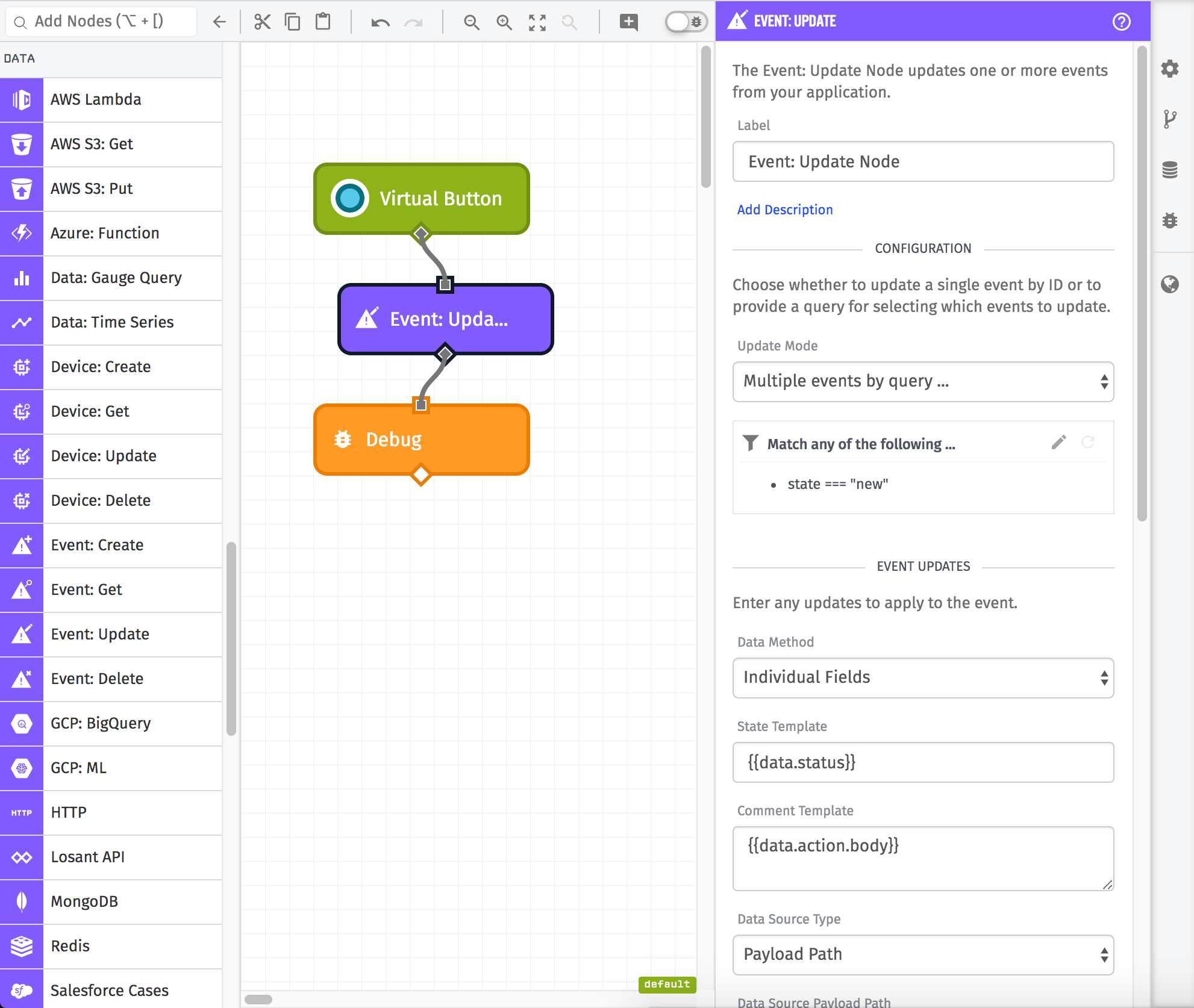
Node Properties
The configuration for the Event: Update Node requires a query method and parameters in order to select which events to update. It also requires new state parameters to apply to the event for the update.
Update Mode
The first step is selecting which event or events to update. The Event: Update Node has three different options:
- One Event By ID: You can input a specific event's ID to retrieve it or use a value on the payload. The ID can be hardcoded in the workflow editor or derived from a property on the current payload and referenced as a string template.
- One Event By Query: You can create an advanced query to retrieve a single event. This query is templatable, and so part or all of the query can come from the current payload. By default, this query updates the most recently created event in a "new" state; however, in addition to modifying the query itself, you have some control over which event matching the query to update by providing a Sort Field and Sort Direction.
- Multiple Events By Query: You can create an advanced query to retrieve multiple events. This query is templatable, and so part or all of the query can come from the current payload. (Note: When using this mode, the node will queue updates for all events matching the query, but it will not return the updated events to the workflow.)
Data Method
The second step is selecting how you want to apply updates to the events selected by the query above. The Event: Update Node has three different options:
- Individual Fields: You can input values for specific fields that can be filled in using individual string templates. In this case, none of the fields are required - leaving a field blank will just not update that field on the event. See below for details on which fields can be updated.
- Payload Path: This option takes a payload path referencing an object on the current payload with updates to apply. The object must validate against the Event Patch schema.
- JSON Object: This option takes a JSON template string that parses into a JSON object containing updates to apply. The value must validate against the Event Patch schema.
If selecting the "Individual Fields" option, you can provide values for the following fields. Any value left blank means that the matching event(s) will retain their current value for that field:
- Subject Template: A string template to update the event's subject.
- Event Level Template: A string template to update the event's level. This must evaluate to one of
critical,error,warning, orinfo. - Event State Template: A string template to update the event's state. This must evaluate to one of
new,acknowledged, orresolved. - Comment Template: An optional comment to include with the update.
Associated Device
To update the associated device on the event, you can provide a device ID using a string template. To remove the device association, check the "Remove Device ID" checkbox beneath the input.
Additional Data
To optionally provide additional structured data with the event update, first choose whether to provide the data via a payload path or a JSON template. Then provide the path or the JSON template string in the input beneath the mode selector.
Event Tags
The "Individual Fields" configuration also allows you to modify tags. You can add, change, and remove tags on the event while leaving other existing tags intact.
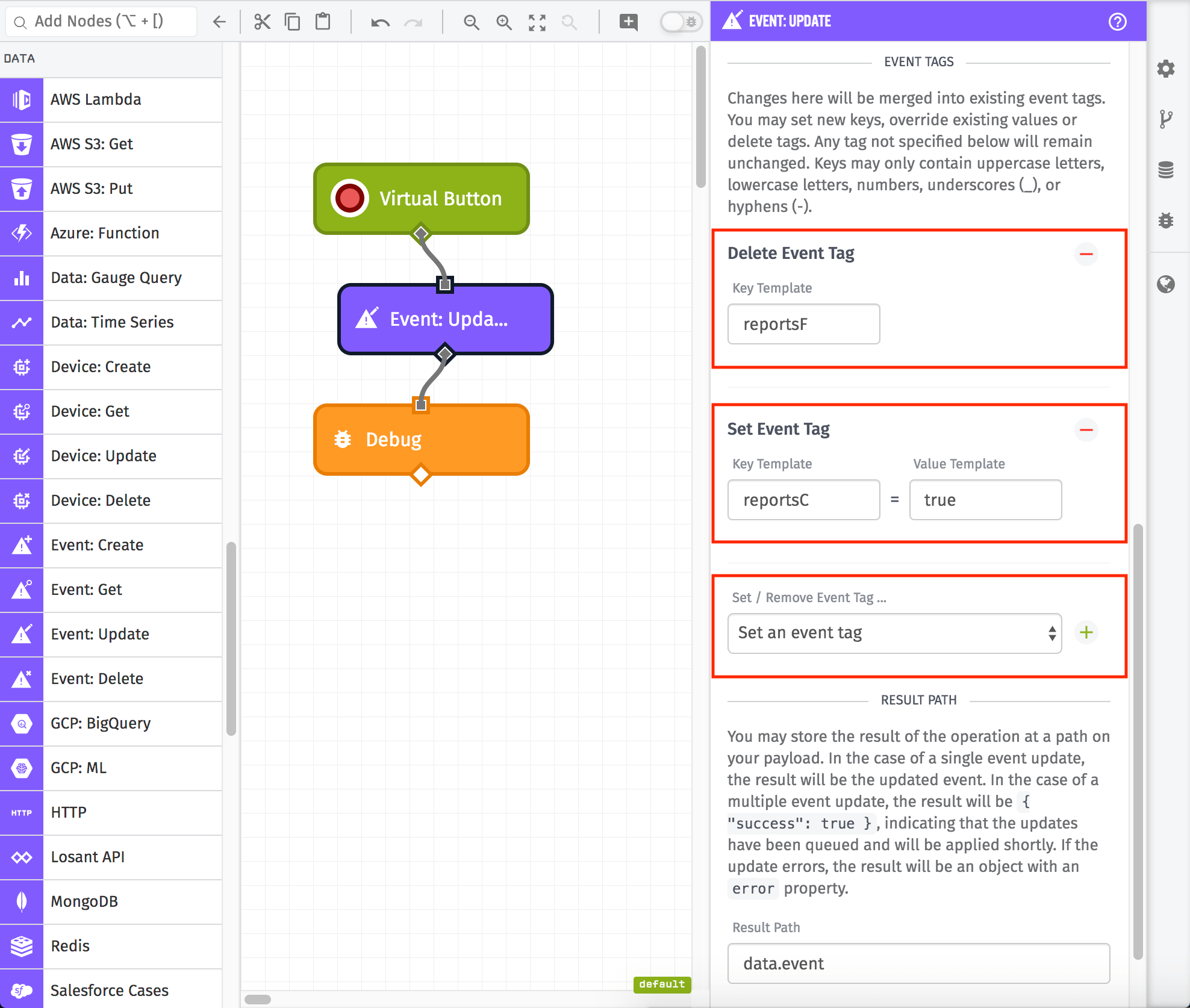
For removing tags, the configuration just takes a templatable tag key, and the tag that matches the given key is removed. In the example above, we are removing the tag reportsF from the event. If the tag key to remove is not found on the event being updated, the removal does nothing.
For modifying or adding a tag, the configuration takes both the key and the value (which are both templatable). If tags already exist on the event with the given key, its value is updated with the new value.
If more detailed control is needed for modifying tags, the "JSON Template" or "Payload Path" data method should be used.
Result Path
You may optionally store the result of the operation at a path on your payload.
In the case of a single event update, the result will be the updated event. In the case of a multiple event update, the result will be { "success": true }, indicating that the updates have been queued and will be applied shortly.
If the update fails, the result will be an object with an error property.
Node Example
For example, if we are updating a single event, the following result will be placed on the payload if a Result Path is provided:
{
  "state": "new",
  "level": "critical",
  "id": "5d28eabf55297e000636aab8",
  "eventId": "5d28eabf55297e000636aab8",
  "updates": [
    {
      "sourceName": "Event Update Node: Startup Process",
      "comment": "Startup Process Initialized",
      "sourceId": "5d1a23e25d792a00068f44c1",
      "sourceType": "flow",
      "creationDate": "2019-07-19T13:15:24.075Z"
    }
  ],
  "message": "",
  "lastUpdated": "2019-07-19T13:15:24.075Z",
  "creationDate": "2019-07-12T20:17:03.424Z",
  "applicationId": "5d06d1bc4863a400066de8ed",
  "sourceId": "5b031db82f4fa100050fdf35",
  "sourceName": "kevin@example.com",
  "sourceType": "user",
  "eventTags": {
    "floor": "second"
  },
  "subject": "Generator Created"
}
If we are updating multiple events, the following result will be placed on the payload if a Result Path is provided, indicating that the updates have been queued:
{
  "success": true
}
Node Errors
A failed event update would result in the following placed on the payload if a Result Path is provided:
{
  "error": {
    "message": "hello is not a valid value for state",
    "type": "Validation"
  }
}
Most errors that occur with this node are around query validation. It is very easy to create an invalid query when using string templating.
For example, the above error would be returned if you tried to query for all events with a state of hello (which is not a valid value for event state).
Related Nodes
Was this page helpful?
Still looking for help? You can also search the Losant Forums or submit your question there.