FTP: Put Node
The FTP: Put Node allows a workflow to upload a file to an FTP or SFTP server.
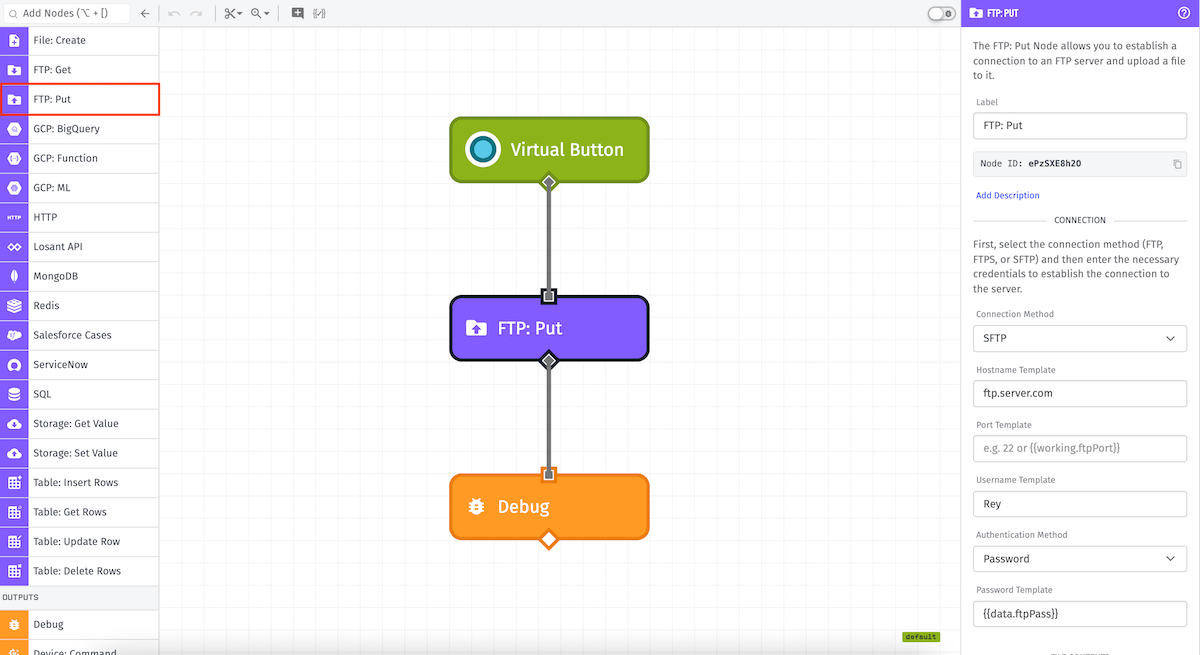
Node Properties
There are three main configuration sections for the FTP: Put Node ...
Connection Configuration
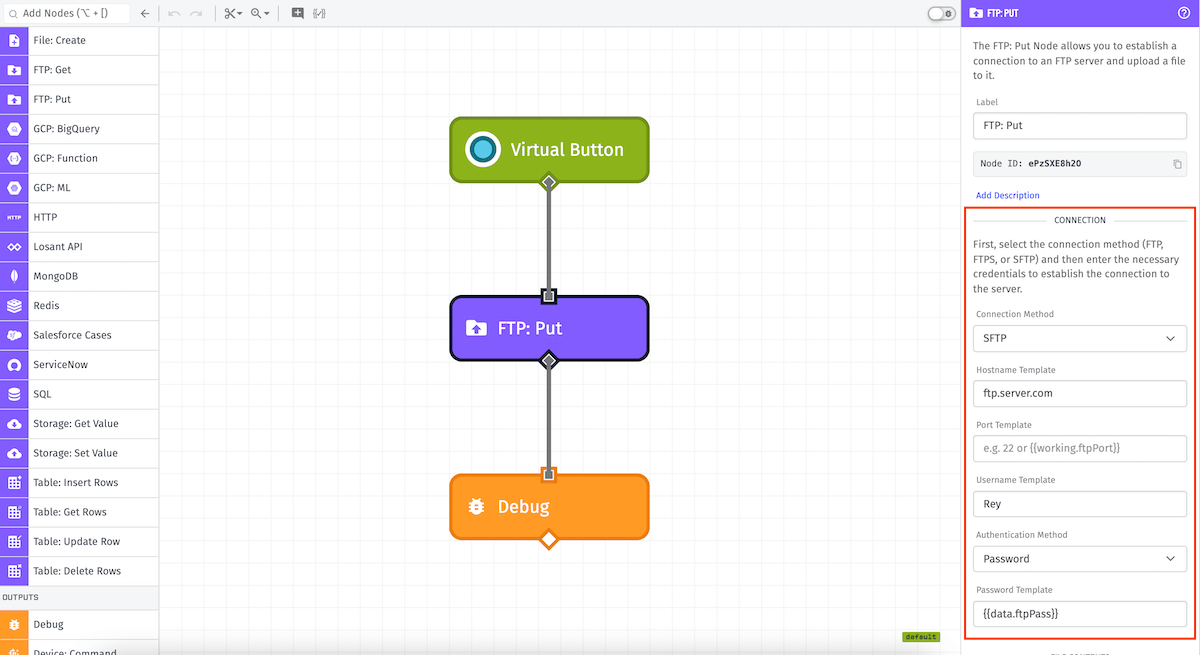
First, enter the required information to establish the connection to the server.
- Connection Method: SFTP, FTPS, or FTP.
- Hostname: (Required) The address of the server.
- Port: Defaults to 22 for SFTP and 21 for FTPS and FTP.
Depending on the chosen Connection Method, there are additional values to provide.
SFTP
- Username: (Required) The username for establishing the SFTP connection.
- Authentication Method: (Required) Choose one of the options and then fill in the provided input ...
- Password: The password associated with the username.
- Private Key: A private key for authenticating the user against the server.
FTPS
- Username: The username for establishing the connection. This is required only if a password is provided, though most servers require this value.
- Password: The password for the provided username. This is optional, but is required by most servers.
In addition, FTPS connections take the following optional SSL properties to establish a secure connection:
- Client Certificate Key: A private key associated with the client certificate. Required if Client Certificate is provided.
- Client Certificate: A TLS/SSL Certificate which verifies the identity of the client. Required if Client Certificate Key is provided.
- Disable SSL Verification: If checked, the server certificate will not be checked against the supplied CA Certificate.
- Custom CA Certificate: A certificate to compare against the server. Necessary only if the server is using a self-signed certificate. The input is disabled if the server is Disable SSL Verification is checked.
FTP
FTP connections are similar to FTPS connections in that most require a Username and Password; however, FTP connections are not established over secure channels and thus do not require SSL configuration.
File Configuration
Next is to configure the name and location of where to upload the file on the server. All applicable fields are templatable:
- Directory Template: (Required) A string template for full path of the directory to upload to.
- File Name Template: (Required) A string template for the name of the file to upload. If the file already exists at this name and directory, it will be replaced.
- File Encoding: The encoding of the file that you're uploading. Defaults to UTF-8. (This field is only applicable when providing file contents through the File Content Template option.)
File Contents
Choose an Input Type for how to define the contents of the file to upload ...
- File Content Template: If selected, enter the file contents directly as a string template. If left blank, your configured file will be uploaded without any content.
- File URL Template: If selected, enter a string template that resolves to a URL pointing to the file you wish to upload. The URL must be publicly available as a GET request.
- Local File Path Template: In edge workflows running GEA version 2.1.0 or higher, you may provide a string template resolving to a path to a file stored in the agent's Docker container.
Result
Optionally, provide a Result Path, which is a payload path for where to put the result of the FTP: Put Node's operation. If provided, the value placed at this path will be an object with a success property indicating whether the upload was successful, and in the case of an error, an error property containing information about the error that occurred, including a message string.
Node Example
When the operation successfully executes, the result will contain a success property with a value of true:
{
  "success": true
}
Node Errors
In the case of an error, the resulting object will contain an error object in addition to the success property:
{
  "error": {
    "message": "530 Non-anonymous sessions must use encryption"
  },
  "success": false
}
Related Nodes
Was this page helpful?
Still looking for help? You can also search the Losant Forums or submit your question there.