GCP Storage: Get Node
The GCP Storage: Get Node allows a workflow to download or retrieve a link to a file in a GCP Storage bucket.
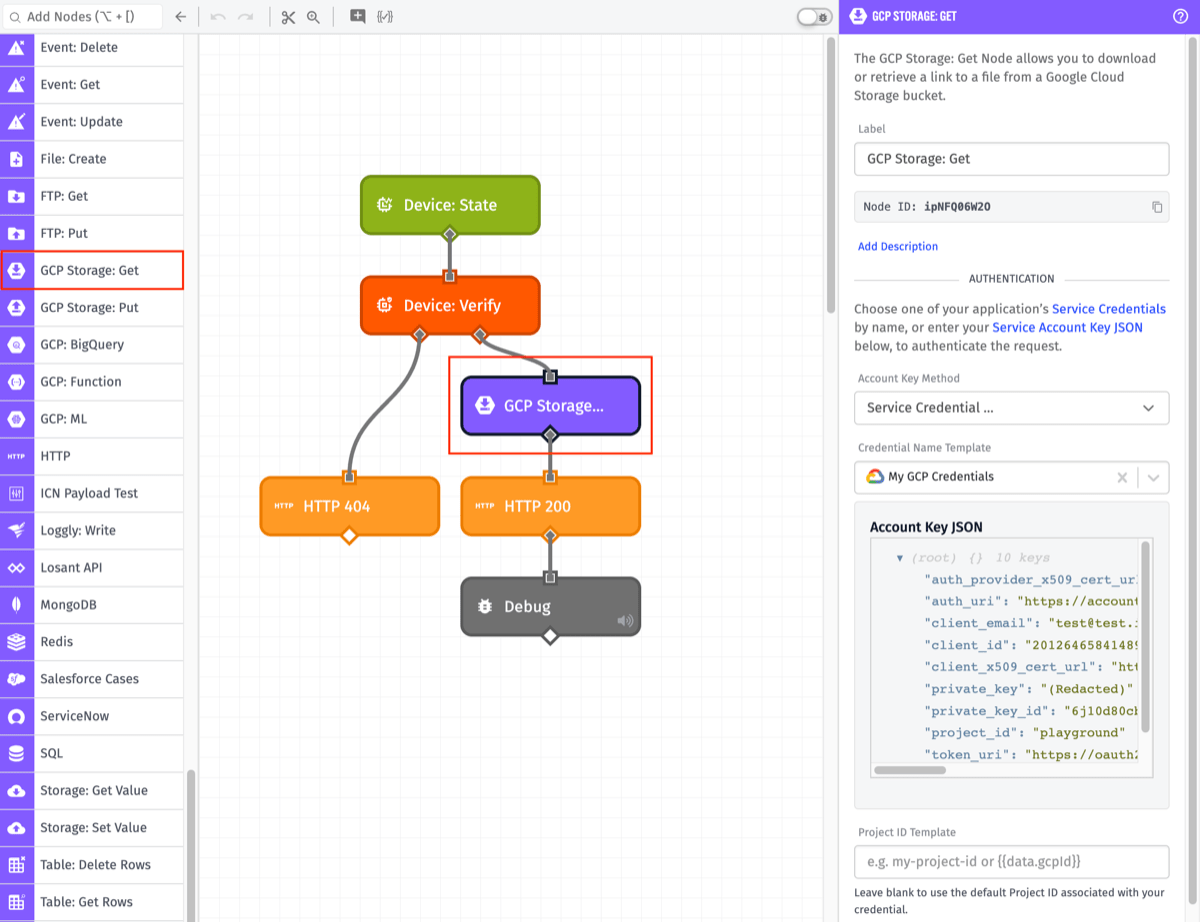
Node Properties
There are four main configuration sections for the GCP Storage: Get Node ...
Authentication
First, we must enter our Google Cloud Storage credentials.
Note: We recommend that you create a service account key specifically for use in Losant workflows that has appropriate access to relevant storage buckets.
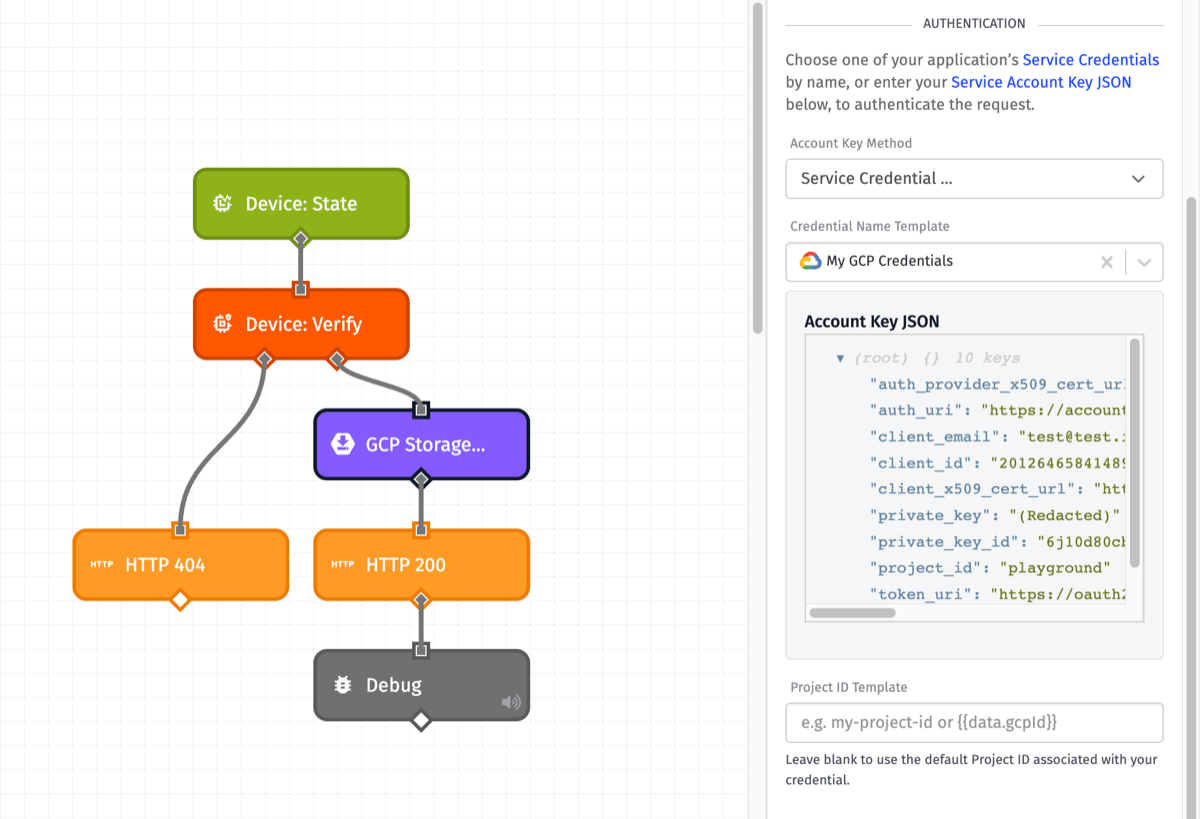
- Account Key Method: This may be supplied as either a Service Credential, a JSON template, or a payload path.
The next configuration field will depend on the Account Key Method selected.
-
If you selected
Service Credentialas your Account Key Method, Credential Name Template can either be a string template that references your Service Credential name or you can select a Service Credential you have created for your application. -
If you selected
Direct Input (JSON Template)as your Account Key Method, Account Key JSON Template can either be a string template that references your Google Service Account JSON Key or you may enter it in directly. -
If you selected
Direct Input (Payload Path)as your Account Key Method, Account Key Payload Path is a payload path that references a Google Service Account Key that has access to the bucket containing the requested file.
The third configuration field appears for all Account Key Methods.
- Project ID Template: Can either be a string template that references your project ID or it can be left blank to use the default project ID associated with your credential. This option is available for all Account Key Methods. In Edge workflows, this option can only be defined for Gateway Edge Agent version v1.42.0 or above.
File Configuration
Next, we enter the basic details of the file we will be retrieving. All applicable fields are templatable.
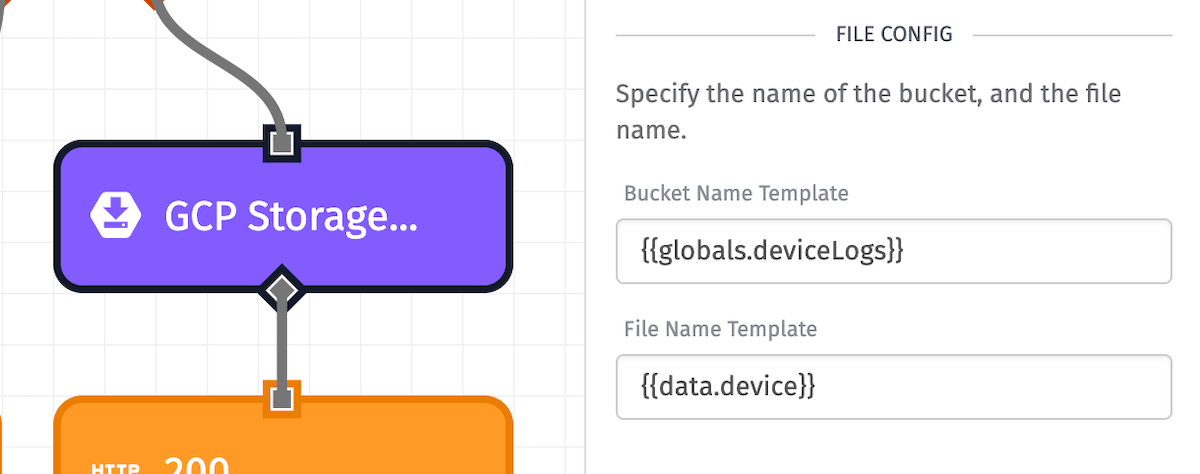
- Bucket Name: (Required) The name of the bucket containing the file to retrieve.
- File Name: (Required) The name of the file to retrieve, including the extension. If the file is in a subdirectory within the bucket, the path to the file should be included in this field. (e.g. "path/to/my/file.ext")
Result Type
Next, choose what to return from the file request. Options are the following ...
- Get File Contents: (Default) If selected, the file contents will be placed on the payload under the result path defined below. Files retrieved by this method have a maximum size of 5MB.
- Get Download Link: If selected, a pre-signed URL to download the file will be placed on the payload under the result path defined below. This option is useful for larger files, as it does not have a size limitation. (Note: Download links retrieved this way will expire after 7 days.)
- Local File Path Template: In edge workflows running GEA version 2.1.0 and higher, you can save the retrieved file to the edge device's file system. If selected, specify a path to where the file should be saved within the agent's Docker container. The field supports string templates.
When selecting the Get File Contents or Local File Path Template options, you must also specify a File Encoding. Default is UTF-8.
When selecting the Local File Path Template option, you must also choose how to handle conflicts if the file already exists at the specified path:
- Cancel and return an error if the file exists: The operation will fail and return an error if a file already exists at the specified path.
- Append my content to the file if it exists: The fetched content will be appended to the end of the file if it already exists.
- Overwrite the file with my new content if it exists: (Default) The existing file will be overwritten with the newly fetched content.
Output
Finally, provide a Result Path as a payload path for where the result of the operation will be placed. This value is required.
When the operation successfully executes, the result will contain two keys: the value (whose contents depend on the selected result type as described in the examples), and some metadata about the file. When the operation encounters an error, the result will contain a single error key.
Node Example
The GCP Storage: Get Node's output varies with the selected result type:
When Get File Contents is selected, the result will look like the following:
{
  "value":
    "1, 2, 3, 4
    12,  340,  360,  417
    45,  318,  342,  391
    56,  362,  406,  419",
  "metadata": { "fileSize": 1890, "contentType": "text/plain", "etag": "\"0x8DA4A2A98327BB1\"" }
}
When Get Download Link is selected, the result will look like the following:
{
  "value": "http://storage.googleapis.com/<Bucket>/<File>",
  "metadata": { "fileSize": 12720, "contentType": "application/json", "etag": "\"0x8DA4A2A98327BA1\"" }
}
When Local File Path Template is selected, the result will look like the following:
{
  "value": "/path/to/saved/file.ext",
  "metadata": { ... }
}
Node Errors
In the case of an error, the resulting object will contain an error key instead of the normal value and metadata keys.
{
  "error": "Access Denied"
}
Related Nodes
Was this page helpful?
Still looking for help? You can also search the Losant Forums or submit your question there.